Answers to common questions
How to change colors, statuses and types, sort your Kanban cards, add your team and more.
Boards and labels
How do I change the colors, statuses, priorities and types on a board?
Every board has its own statuses, priorities and types, and you can rename them, recolor them, reorder them, add new ones and delete the ones you don't use. Changes apply to that board only, so each project can use words that fit it (for example "Waiting on client" instead of "Pending Deploy").
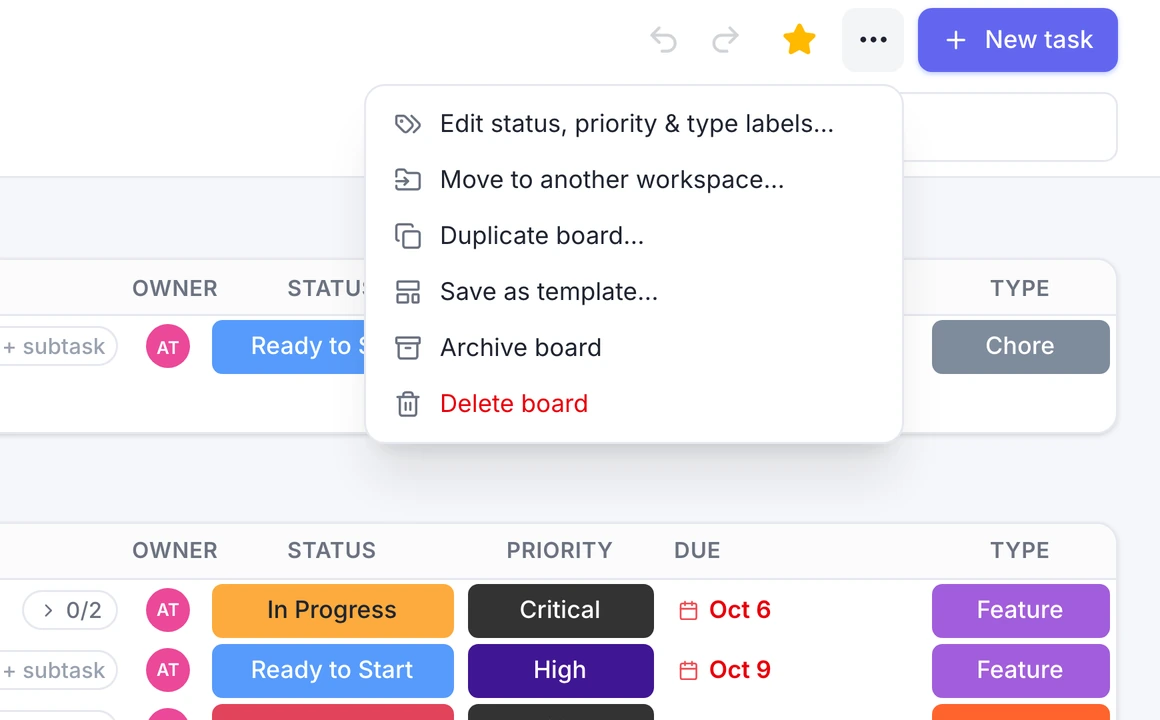
- Open the board and choose the board menu (the ⋯ button at the top right), then Edit status, priority & type labels…
- Pick the Status, Priority or Type tab.
- Color: click or tap the colored square next to a label and choose a new color. Name: type over the label's name.
- Order: use the arrows (website) or drag the handle (iPhone, iPad and Android). For statuses, this order is also the order of the Kanban columns.
- Add or remove: use Add status (or priority, type) at the bottom, or the trash icon to delete one.
- Choose Save labels.
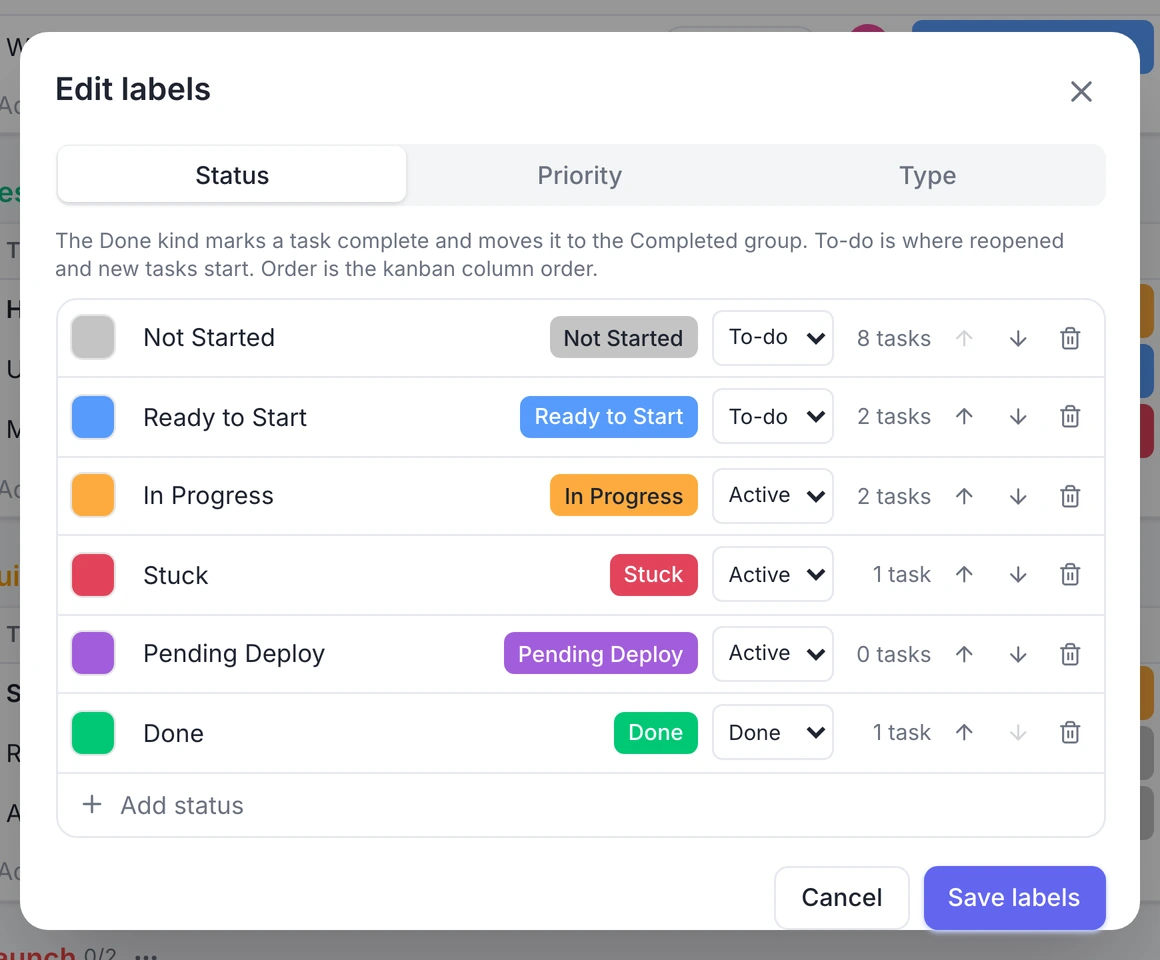
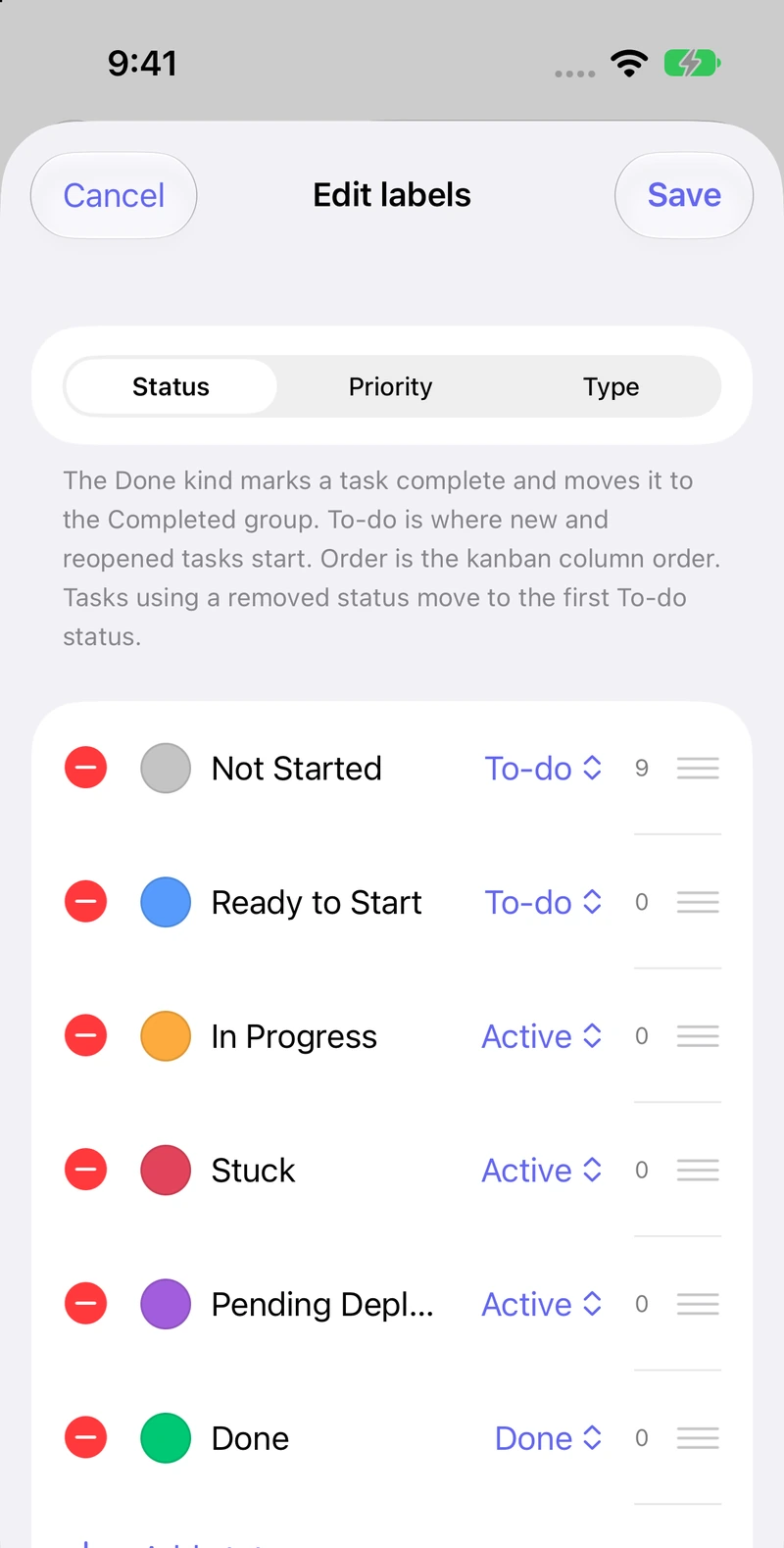
Good to know: each status has a kind. To-do is where new and reopened tasks start, Active means work in progress, and Done marks a task complete. A board needs at least one To-do and one Done status. If you delete a label that tasks are using, those tasks move to the first To-do status (or lose the priority or type).
What do To-do, Active and Done mean for a status?
They tell All Done? how to treat the task. Done statuses mark a task complete: it gets a check mark. To-do is where a task goes when you create it or reopen it. Active statuses are everything in between. You can name them anything you like, and have several of each kind.
Kanban
How do I reorder or sort the cards in Kanban view? New
You have two ways to control the order of cards inside a Kanban column, on the website, iPhone, iPad and Android:
- Drag them yourself (Manual). Press and hold a card (click and drag on the website), then drop it above or below another card in the same column. To move it to another column, drop it on that column: its status (or category) changes, and it lands exactly where you drop it.
- Let All Done? sort them. Open Sort in the Kanban toolbar and choose Due date (soonest first, no date last), Name (A to Z), Priority (in your board's priority order), Type (in your board's type order) or Newest first. Choose Manual to go back to your own order.
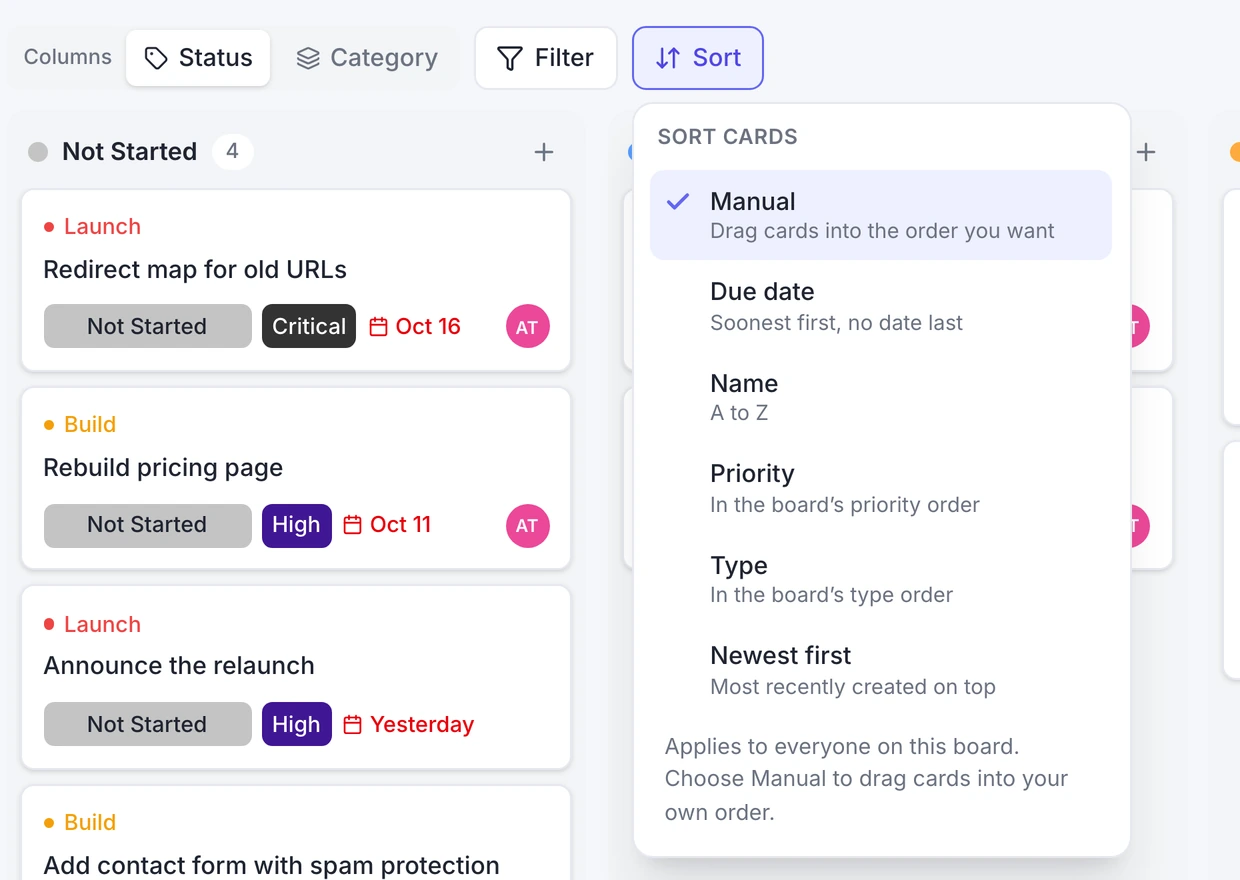
Good to know: the sort setting belongs to the board, so everyone on the board sees the same order. While a sort is on, dragging a card to another column still changes its status, but you can't place it by hand until you choose Manual. Your manual order is kept, so switching a sort on and off doesn't lose it.
Can I show Kanban columns by category instead of status?
Yes. In Kanban view, use the Columns switch (Status or Category). Status shows one column per status; Category shows one column per group on the board. Filters let you narrow the cards by status, category or priority.
Teams and accounts
How do I add teammates and choose what they can see?
Admins can add people from Profile & settings (Add user). Enter their name and email, choose Member or Admin, and pick which workspaces a member can open (admins always see everything). You can set a temporary password, or leave it empty if they will sign in with Google or Apple using the same email address: they join your organization automatically.
Can I sign in with Google or Apple?
Yes. Use Continue with Google on the website, iPhone, iPad and Android, or Sign in with Apple on iPhone and iPad. If an admin already added your email you join their organization; otherwise you get your own, with you as its admin. You can keep using email and password too, and set a password later in Profile & settings.
How do I delete my account?
Open Profile & settings and choose Delete my account in the Danger zone. The steps are on our Delete Your Account page. If you are the only member, this also deletes the organization and everything in it.
Everyday use
I deleted something by mistake. Can I get it back?
Usually, yes. Undo (Cmd/Ctrl+Z on the website, or the undo button) takes back your recent steps. Deleted workspaces, boards, groups and tasks are also kept in Profile & settings → Recently deleted for 30 days, where you can restore them. Instead of deleting a board, you can Archive it from the board menu and bring it back any time from Profile & settings.
How do I get due-date reminders?
Open Profile & settings on your phone and turn on Due-date reminders. Tasks that are due remind you on that device (tasks without a time at 9:00 AM). On the website, turn on Due-date reminders on this device to get browser notifications while All Done? is open in a tab. Reminders are set per device.
What are templates?
Templates are ready-made boards: a project plan, a business plan and more. Choose one when you create a board, or save any board of yours as a template from the board menu (Save as template…) and reuse it.
About All Done?
Which devices does All Done? work on?
The website (alldone.work), iPhone and iPad (including iPhone Duo) from the App Store, and Android phones and tablets from Google Play. One account works everywhere.
Is All Done? free? Do you sell my data?
All Done? is free to use. We never sell your data, and there are no ads or analytics trackers in the apps. Your boards are stored on our servers (on Google Cloud) so they stay in sync across your devices, and our team can access them when needed to run the service and to help you with a support request. Read the details in our Privacy Policy.
I have a question or an idea. How do I reach you?
Choose Feedback & ideas in the sidebar (or in Profile & settings on your phone). Your message goes straight to us and we answer by email. You can also use the support form.